Remesh
The top of the panel: everything for a one-click remesh.
Quads
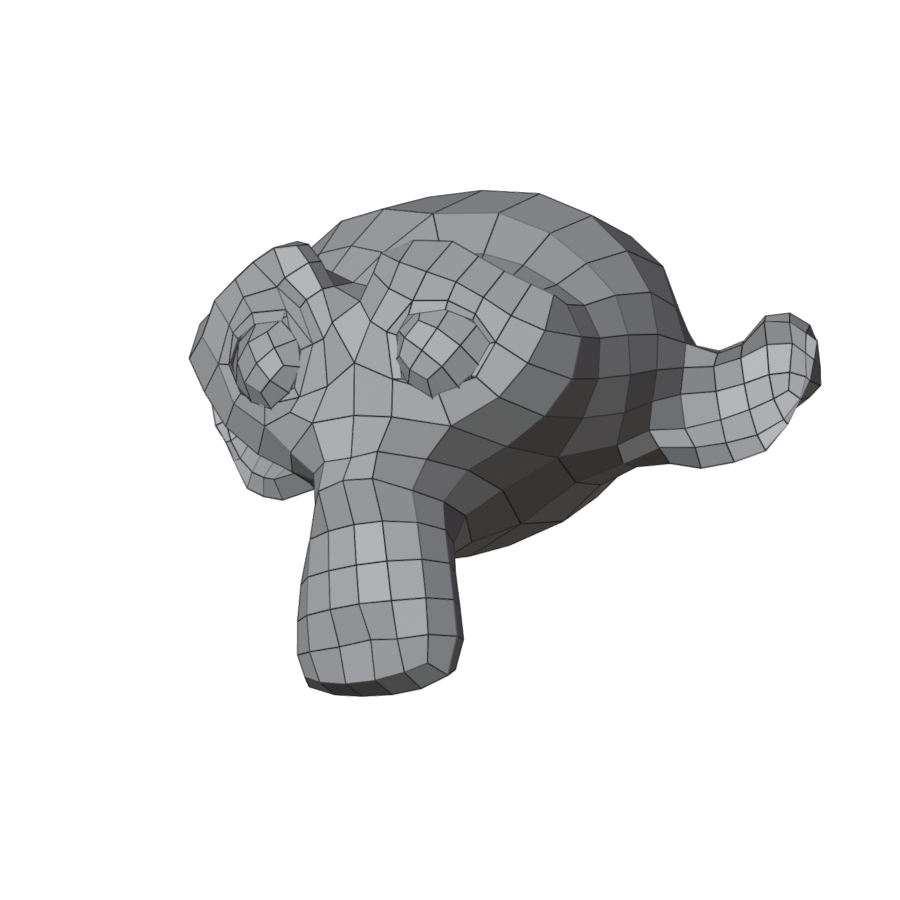
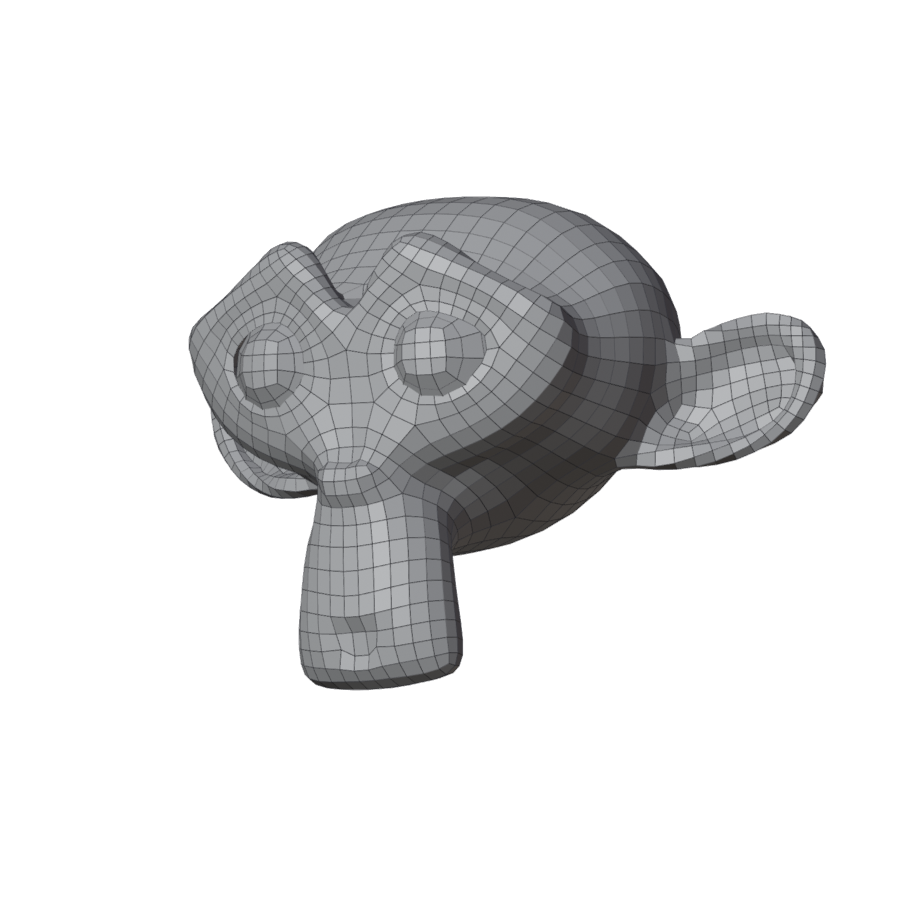
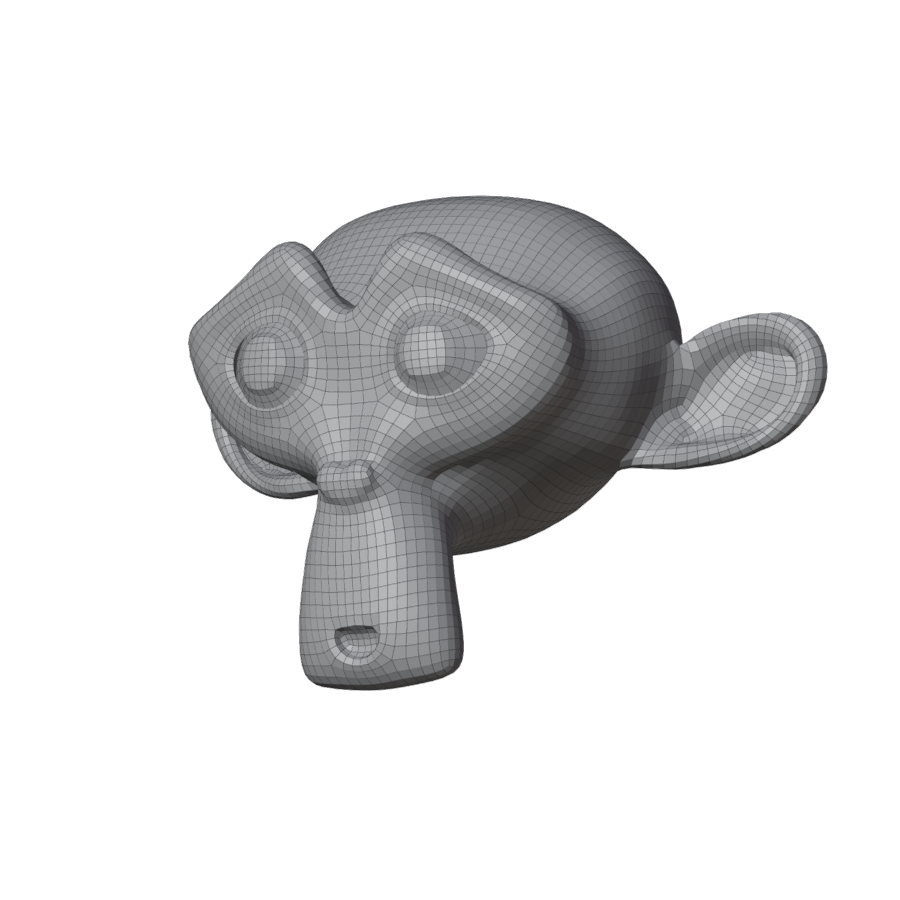
About how many quads the result has. The result lands within a few percent of it; a region drawn with guides and exact edge counts can move it a little more.
| 500 | 2000 | 6000 |
|---|---|---|
 |
 |
 |
More quads take longer: a head at a few thousand quads takes seconds; a full body at 5000 can take a minute or two.
Style
Settings for a kind of model. Pick the one that fits; change any Expert setting and the style shows Custom.
| Style | For | What it sets |
|---|---|---|
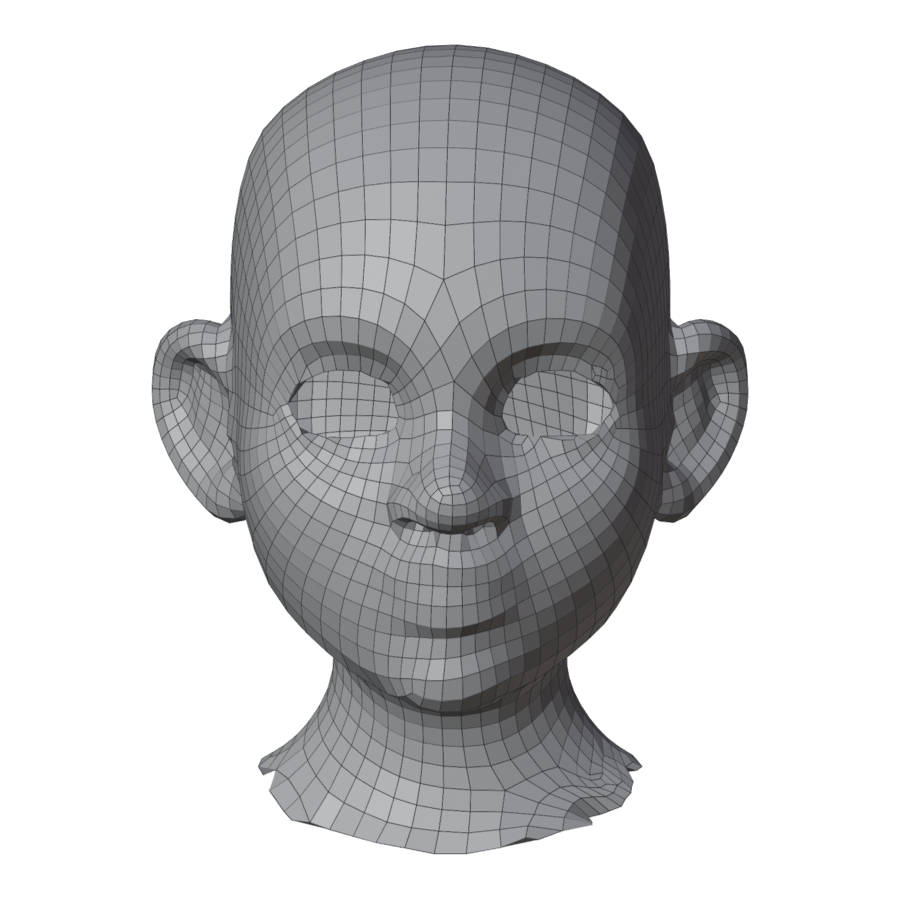
| Character | Characters, creatures, stylized sculpts. The best start for most models. | Organic flow: denser quads where the form is detailed (eyes, nose, toes), coarser on broad areas; hard edges detected. |
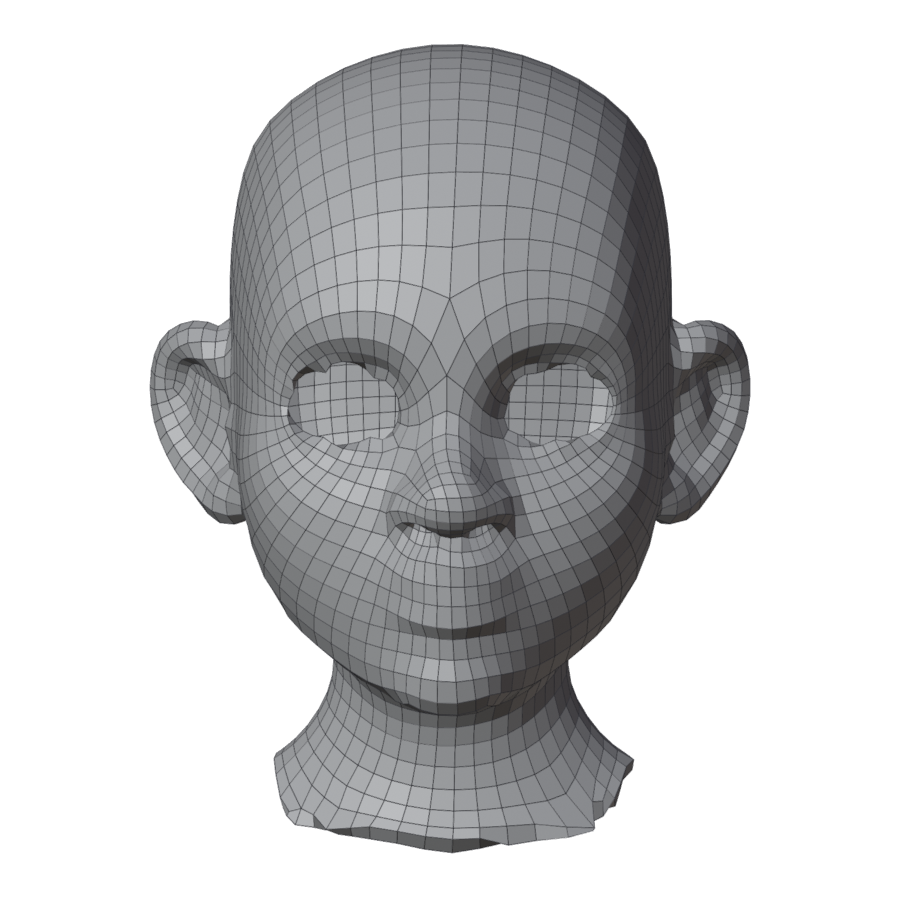
| Sculpt / Scan | Noisy or very dense surfaces: scans, dynamic-topology sculpts. | Organic flow; no hard-edge detection, so surface noise does not read as creases. |
| Hard Surface | CAD-like parts, kitbash, props. | Even flow; hard edges detected and followed. |
| Character | Sculpt / Scan | Hard Surface |
|---|---|---|
 |
 |
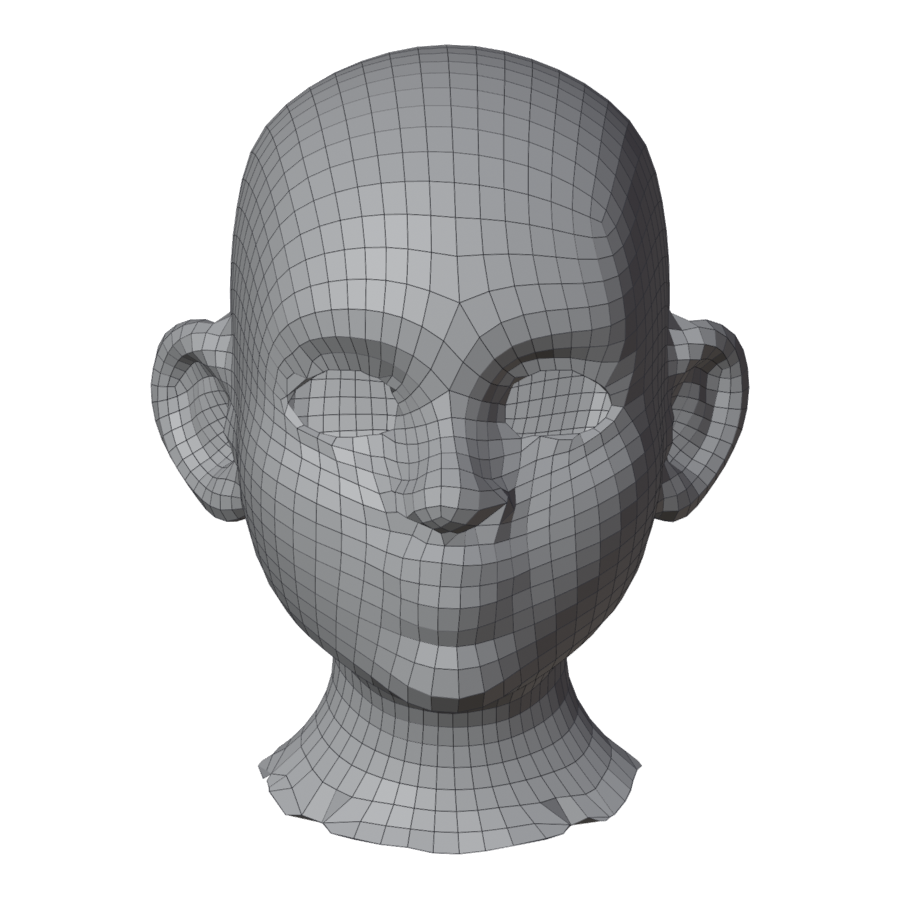 |
The stylized head at 3000 quads in each style.
Remesh
Remeshes the selected mesh with the current settings. A progress bar runs; Cancel or Esc stops it at once. Blender stays usable while it runs.
The result is a new object, <name>_quadmesh, shown in the original's place. The
original is hidden, never changed. Remesh again and the new result replaces the old one
(or, if it has problems, arrives next to it: see The result).
Symmetry
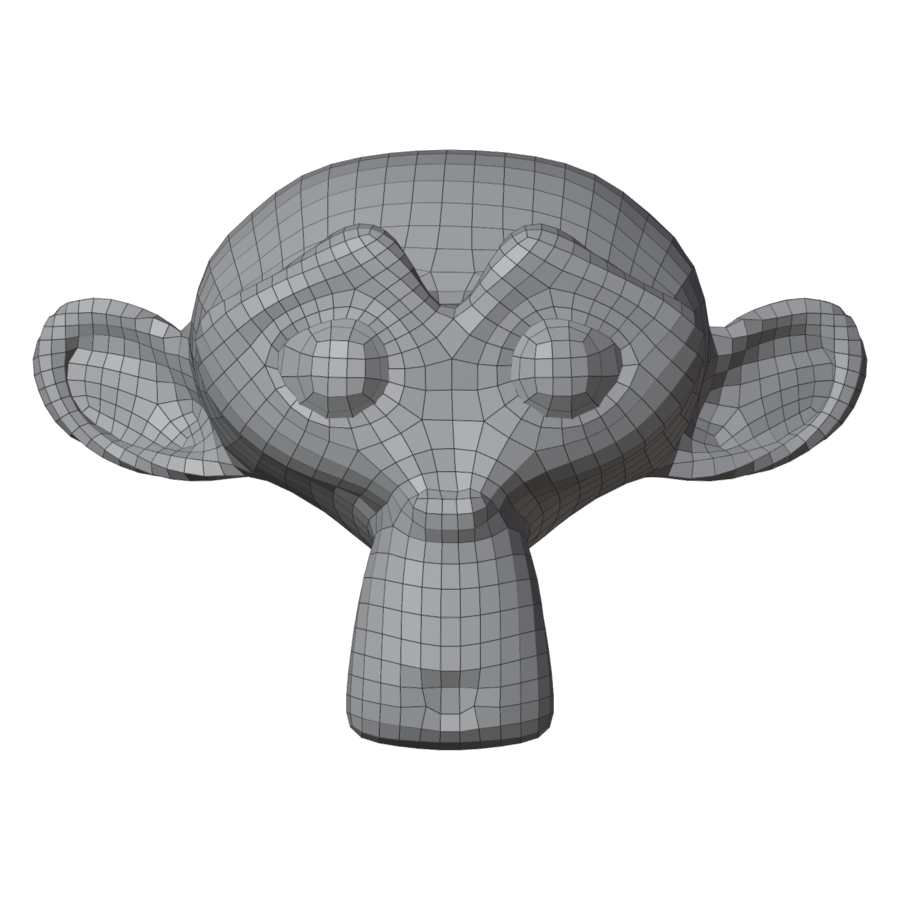
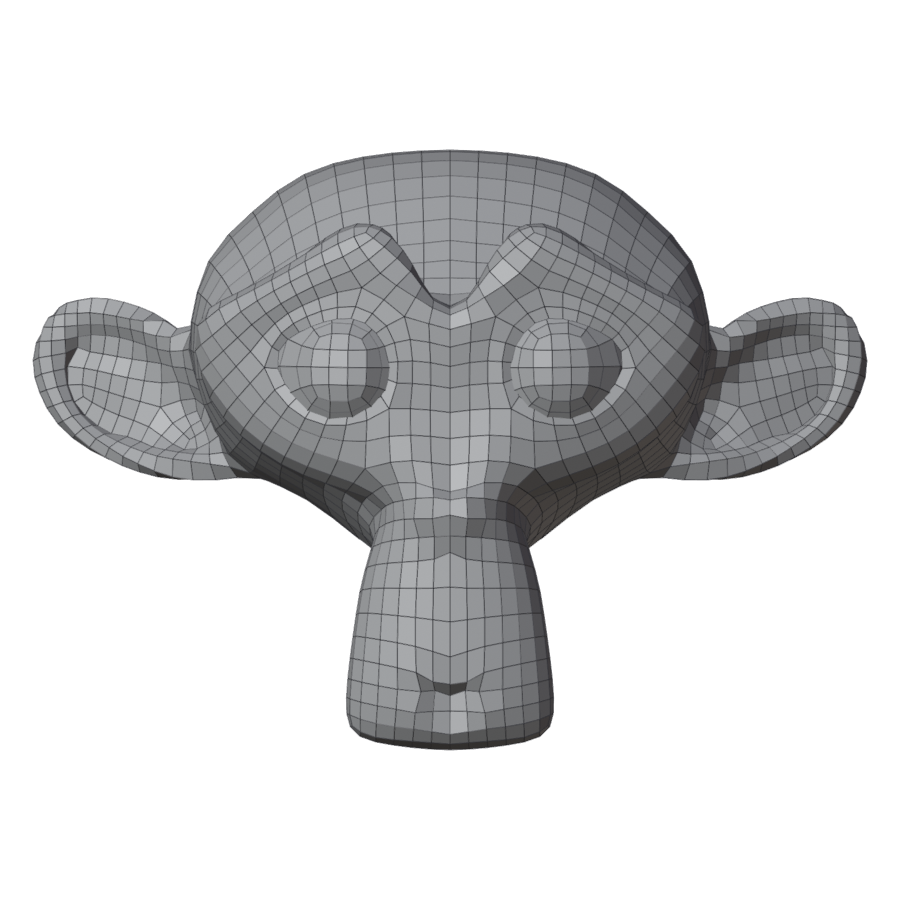
The mirror icon next to Remesh. On: one half is remeshed and mirrored onto the other, so every vertex has its mirror image and an edge loop runs down the middle (the mesh's own X = 0).
| Off | On |
|---|---|
 |
 |
Use it for characters you will pose or sculpt symmetrically. Your mesh should be close to symmetric about its own X axis.
Show Original / Show Result
Switches between the result and the original (Shift+Q). Useful to compare, and to go back to the original to draw guides or paint density.
In Edit Mode
In Edit Mode the panel shows the Edit Mode tools instead of Remesh.